Contents
- 👨💻 Log in to your learning platform as an administrator with your admin credentials.
- 1. Click on “Assessments” on your platform to access the assessment summary option.
- 2. On the Assessments screen, select “Assessment Summary” to open it.
- 3. Here on the Assessment Summary screen, you can view summaries of all assessments taken on your platform. Click “Download” to download the summary.
- 4. a. Select “Date Range” to choose your start and end dates. The maximum range allowed for download is 365 days.
- b. After selecting the date range, click “Generate” to download the assessment summary.
- 5. You’ve successfully downloaded the assessment summary for the selected date range. Happy analyzing!
How to download Assessment summary on your platform

Written by Shofiya SM
Updated at April 28th, 2026
Contents
- 👨💻 Log in to your learning platform as an administrator with your admin credentials.
- 1. Click on “Assessments” on your platform to access the assessment summary option.
- 2. On the Assessments screen, select “Assessment Summary” to open it.
- 3. Here on the Assessment Summary screen, you can view summaries of all assessments taken on your platform. Click “Download” to download the summary.
- 4. a. Select “Date Range” to choose your start and end dates. The maximum range allowed for download is 365 days.
- b. After selecting the date range, click “Generate” to download the assessment summary.
- 5. You’ve successfully downloaded the assessment summary for the selected date range. Happy analyzing!
This guide shows you how to download an assessment summary with detailed information such as total score, correct and incorrect responses, credits utilized, public summary link, scaled score, raw score, and more.
👨💻 Log in to your learning platform as an administrator with your admin credentials.
1. Click on “Assessments” on your platform to access the assessment summary option.

2. On the Assessments screen, select “Assessment Summary” to open it.

3. Here on the Assessment Summary screen, you can view summaries of all assessments taken on your platform. Click “Download” to download the summary.

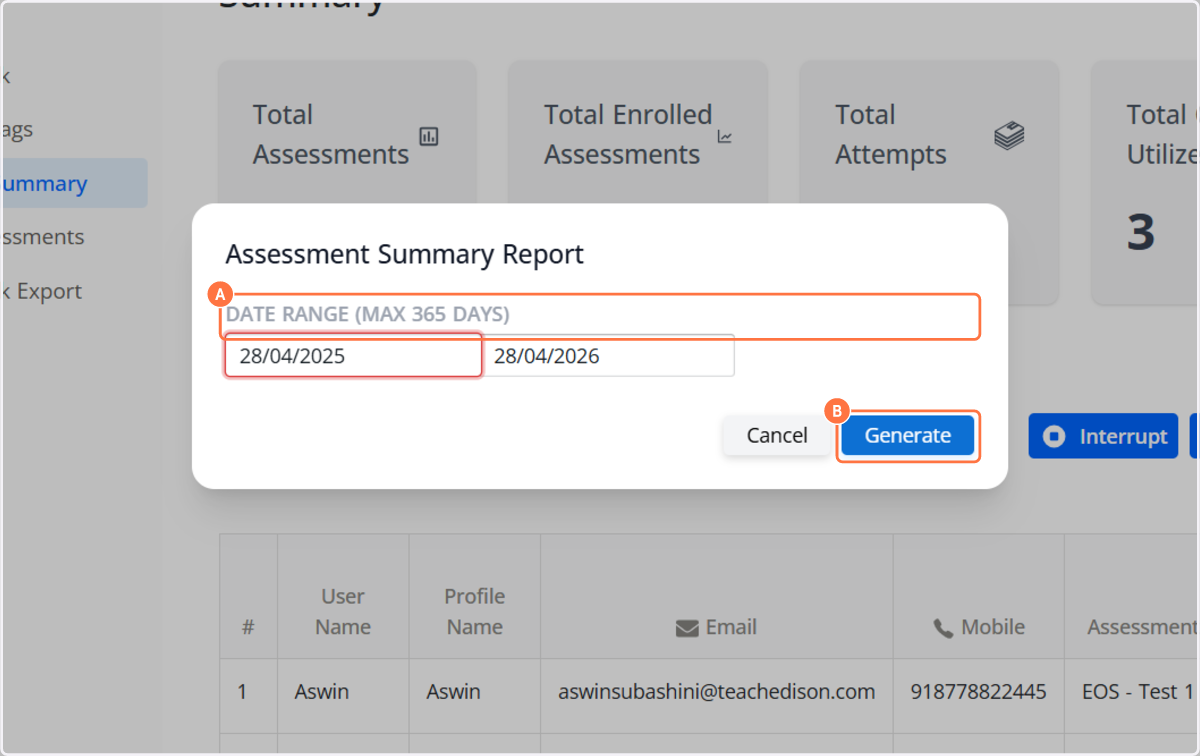
4. a. Select “Date Range” to choose your start and end dates. The maximum range allowed for download is 365 days.
b. After selecting the date range, click “Generate” to download the assessment summary.
5. You’ve successfully downloaded the assessment summary for the selected date range. Happy analyzing!
